How to log into the VPN using Authenticator

How to log into the VPN using Authenticator

How to log into VPN using Authenticator


Step 1:

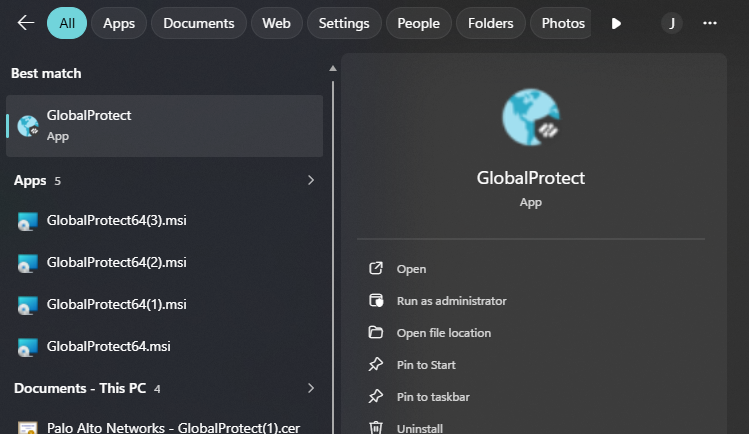
Go to global protect, you can do this by going to the search bar at the bottom of your screen, or at the bottom right, click on the up arrow and click on the little globe Icon.  


Step 2:

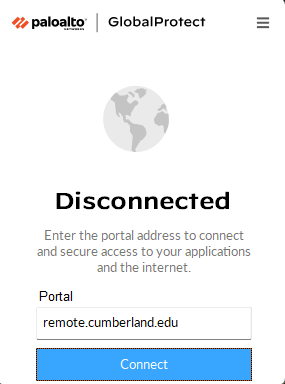
Ensure that you have the correct portal handle. (This part should be the same as before.)
remote.cumberland.edu


Step 3:

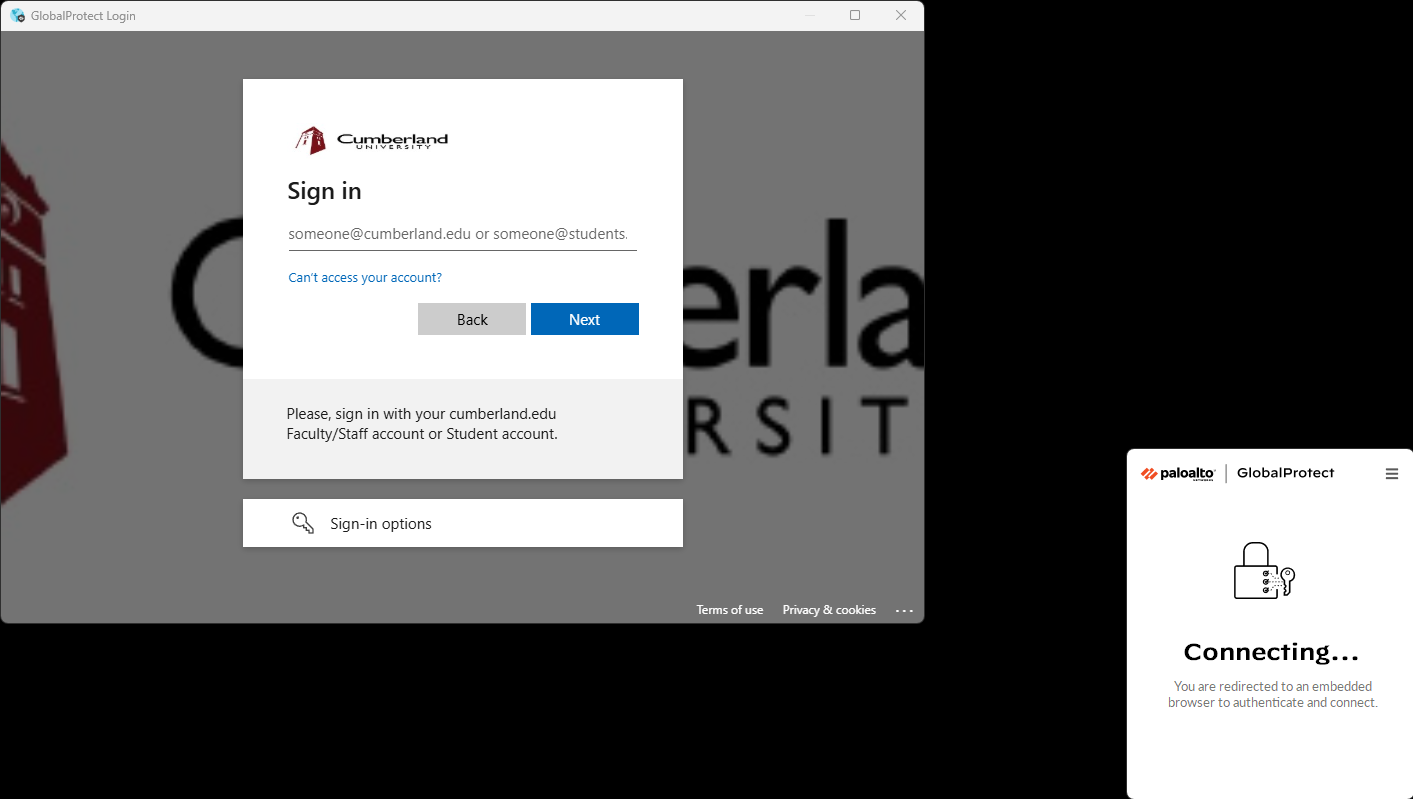
Once you click connect, wait a moment and a dialog box will appear with our Cumberland Microsoft Login, 
from here you will use you Cumberland Email and password and authenticate it using Microsoft Authenticator.
 (This is also the same for how Slate, Student First and Canvas is set up.)
Step 4:

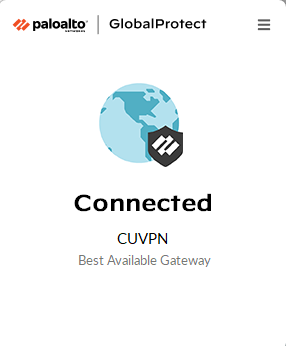
You should then see the Globe icon at the bottom right appear blue .
 The VPN should also say you have been connected.

    • Related Articles

    • Student | Enrolling Microsoft Authenticator

      Enrolling in 2FA with Microsoft Authenticator Step 1 On your mobile device, download the Microsoft Authenticator app. (Do not log in, as we will scan a QR code to connect your account to the authenticator app in a later step) Step 2 Once you download ...
    • Faculty and Staff | Enrolling Microsoft Authenticator

      Enrolling in 2FA with Microsoft Authenticator Step 1 On your mobile device, download the Microsoft Authenticator app. (Do not log in, as we will scan a QR code to connect your account to the authenticator app in a later step) Step 2 Once you download ...
    • Student First sign-in steps

      To access Student First please use this link: Adminsfs.Cumberland.Edu It will bring you to a page that looks like this: To log in you can either click the blue “Please Login” text on the left hand side of the page, or the “Log In” button in the top ...
    • Student First log-in documentation

      To access Student First please use this link: Student.Cumberland.Edu If prompted to select the option that reads "Cumberland SSO" It will then look like the CANVAS login page. Here you will enter your entire student email. (See example below) After ...
    • Student First - Checking Class Schedule

      How to Check your Class Schedule First go to your Cumberland Student Portal - https://student.cumberland.edu and log in using your Student Email Once you log in, Click on the Class Schedule button on the top left side of the screen. Once you click on ...