CANVAS - Class Email through Canvas Inbox

CANVAS - Class Email through Canvas Inbox

Class Email Through Canvas Inbox

Emailing your class is now done via Canvas by announcements or by using the inbox.

Step 1:

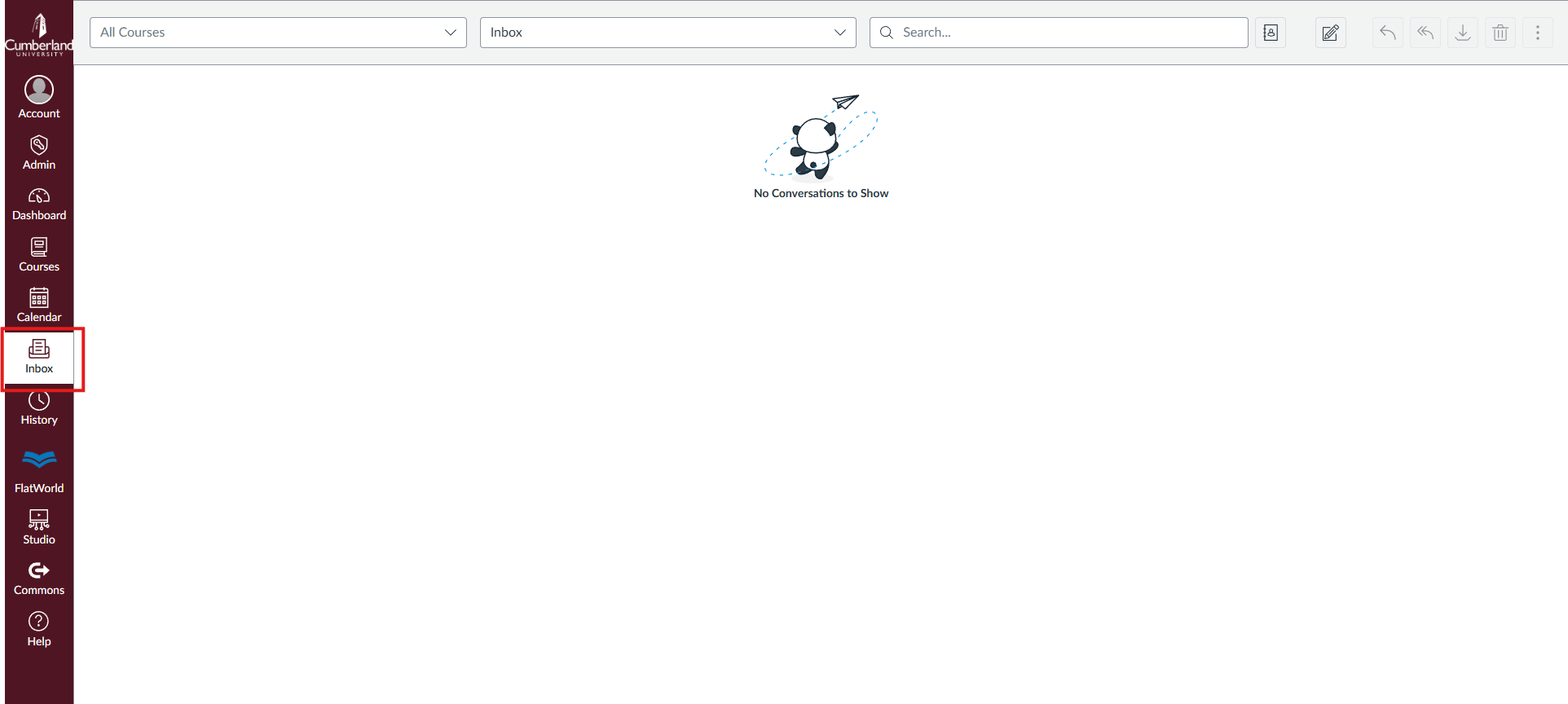
At the home page of CANVAS click the mail icon labelled "Inbox" on the left hand side
Step 2:

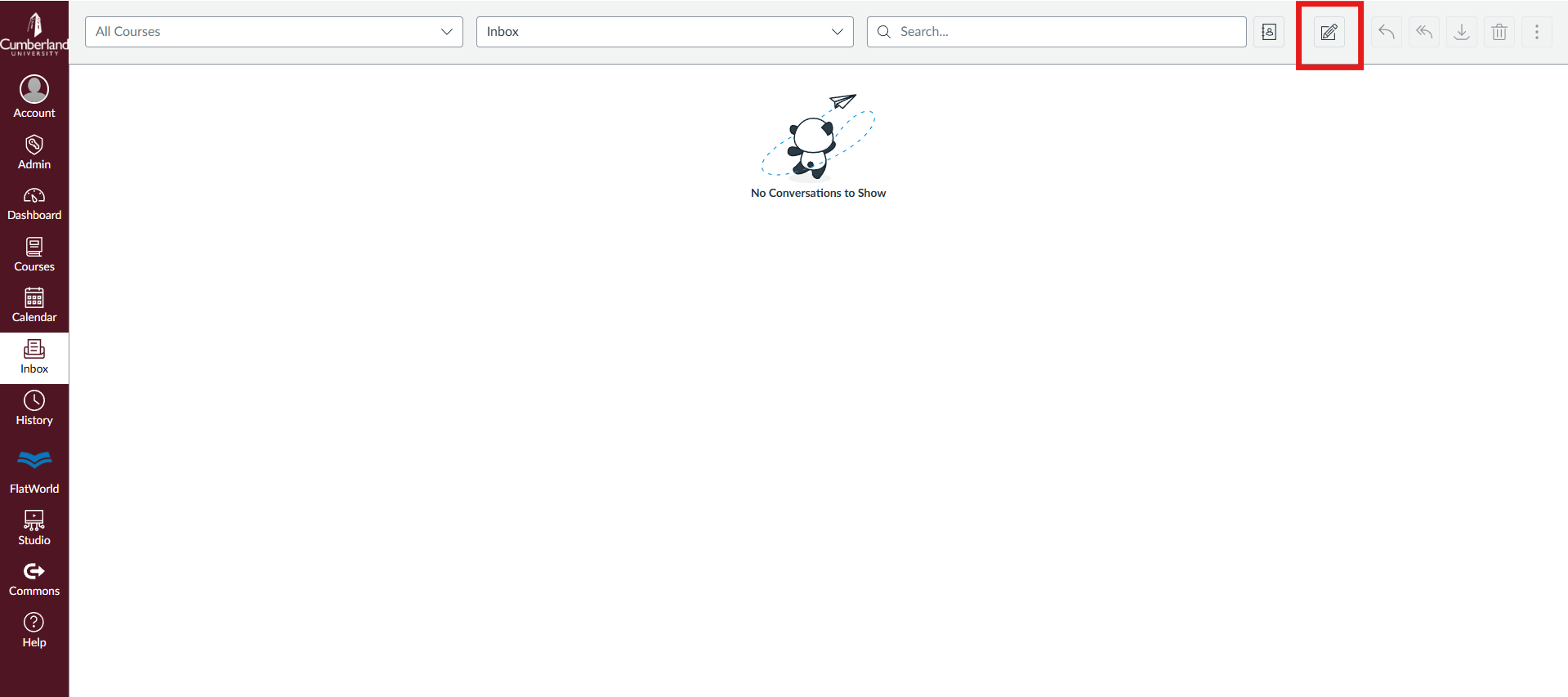
On the top click the pencil icon "Compose a new message"
Step 3:

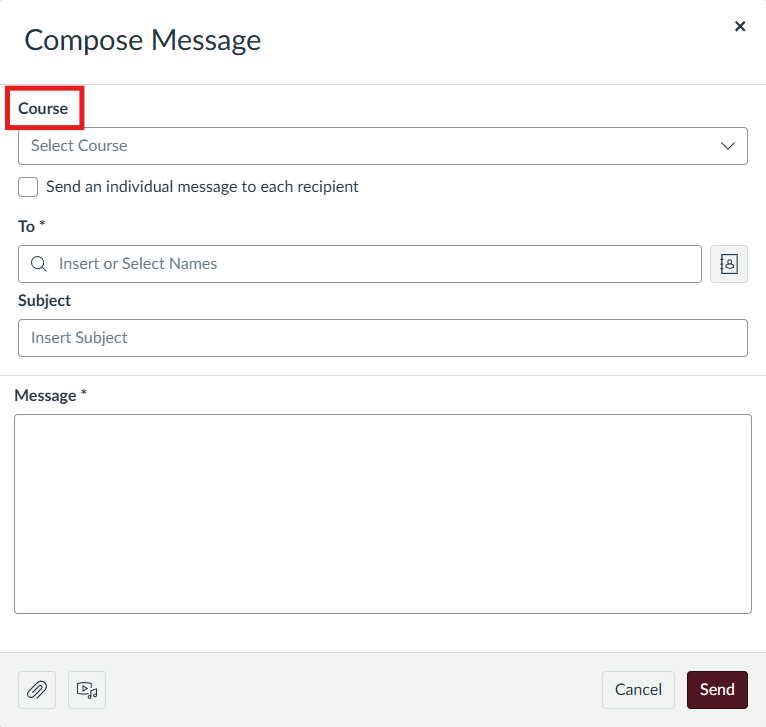
In the "Course" section select the course you would like to send to
Step 4:

Under "To*" you can "Select All" to send the message to everyone in that course.

Step 5:

Fill out the "Subject" section title

Step 6:

Fill out the body content under the "Message" section

Step 7:

To add any files, click the paperclip icon on the bottom left

Step 8:

Once you are finish click "Send" on the bottom right

    • Related Articles

    • Class Email through Canvas announcements

      How to Send a class Announcement in CANVAS Emailing your class is now done via Canvas by announcements or by using the inbox. Step 1: To send an announcement in your class click on the book icon labelled "Courses" Step 2: Select your desired Course ...
    • CANVAS- Attendance

      Entering Attendance Into CANVAS Step 1: Inside of your CANVAS course, select "Attendance" in the menu on the left side of the screen. Step 2: If every student is present, you can select the "Mark all Present" button in the top left. Step 3: In order ...
    • CANVAS Training Video

      Canvas Training Video In this video, you will be shown how to; Upload Syllabus Create Course Homepage Publish Course Enter Attendance Enter Grades Click Here to View Video
    • CANVAS- Creating Homepage

      Creating Homepage Step 1: Navigate to the course you wish to work on via your Dashboard or through the Courses menu. To import the CU Front Page Template, click on the Import from Commons button on the right side of your screen. Step 2: The Canvas ...
    • Student First - Checking Class Schedule

      How to Check your Class Schedule First go to your Cumberland Student Portal - https://student.cumberland.edu and log in using your Student Email Once you log in, Click on the Class Schedule button on the top left side of the screen. Once you click on ...